Submitting a work request is easiest when requesters don’t have to search for equipment names, scroll through long lists, or guess which asset to choose.
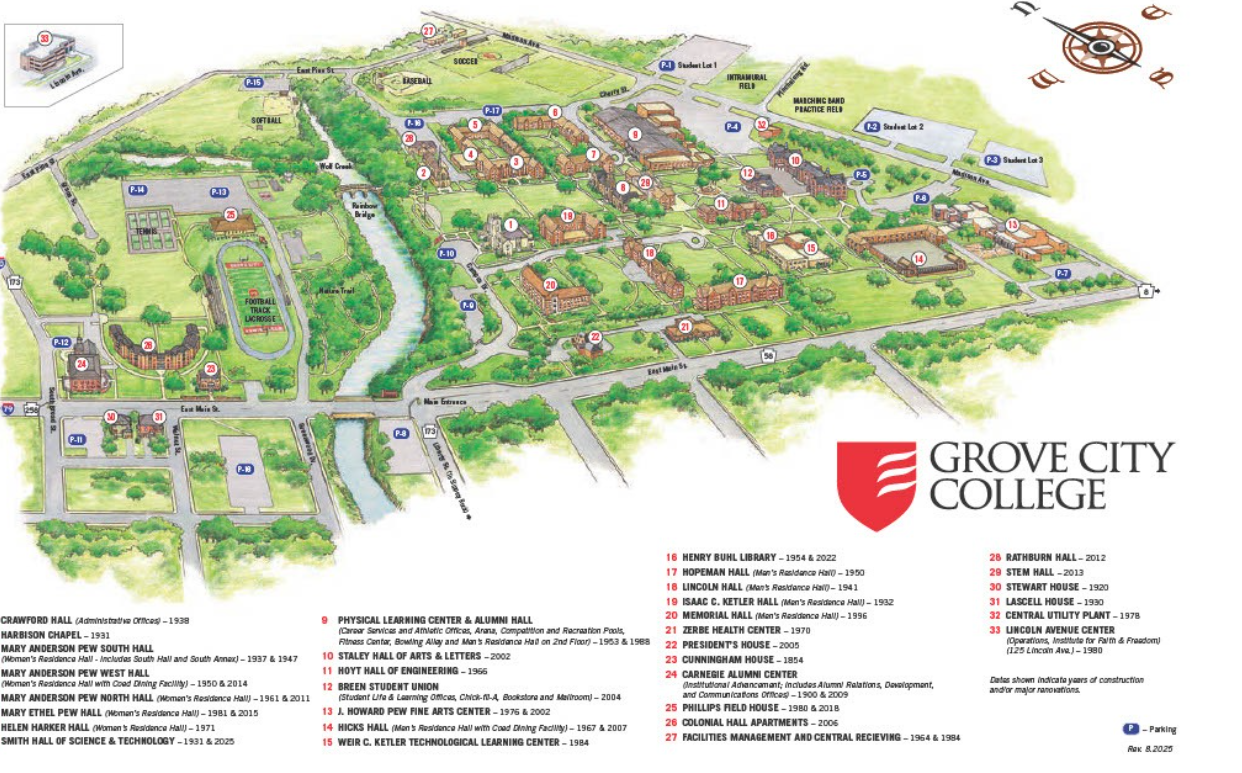
With Limble Asset Links, you can create a simple “facility map” (floor plan, layout image, or diagram) where users click directly on an asset to open a work request form already tied to that specific equipment. You’ll upload (or host) a facility image—like a floor plan—and place clickable “hotspots” on top of each machine or area that open a Limble Work Request link for a specific asset.
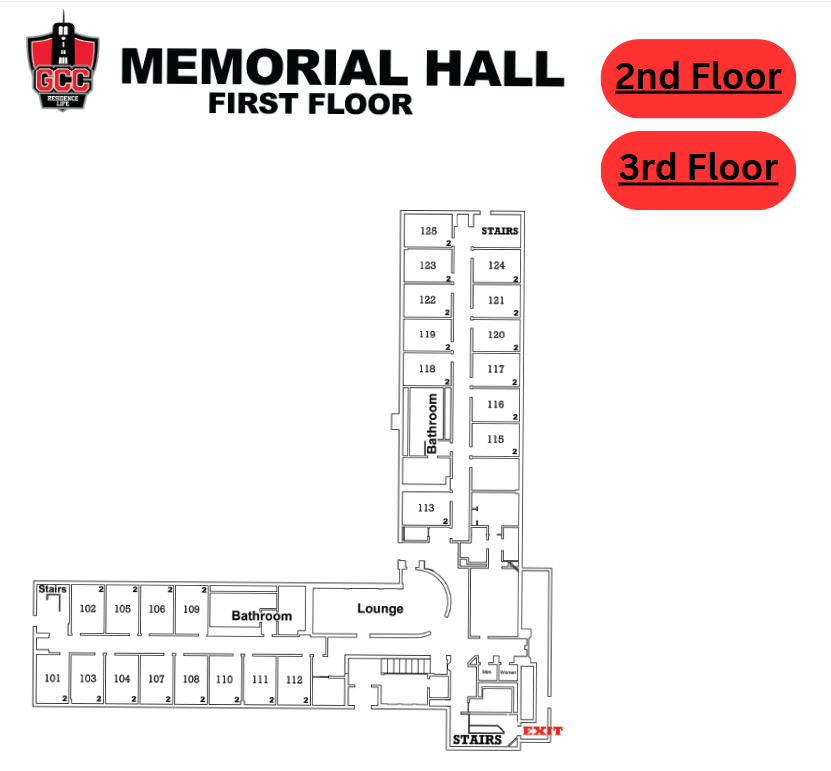
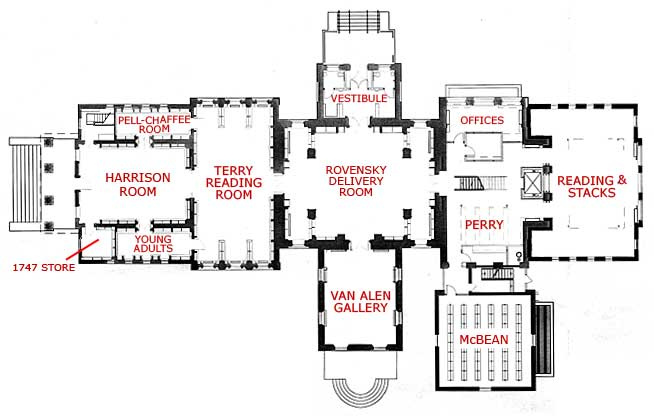
Here is a prototype I built last year. You can click on Memorial Hall (L shaped building near the middle of the map) to see the floorplan layout and some of the rooms on the 1st floor can be clicked on. There are a few other links added on certain buildings across the map as well.
Why This Works So Well
✅ Reduce “wrong asset” submissions
✅ Increase work request adoption for non-maintenance staff
✅ Speed up request entry (no searching needed)
✅ Improve asset history quality (requests go to the right equipment every time)
✅ Make your work request process feel modern and easy
Step 1: Get the Work Request Asset Link for Each Asset
The key to this entire setup is the asset-specific work request links.
- Login to Limble.
- Navigate to the Asset and click on the QR code option in the top right corner of the asset card.
- Locate the Work Request link/asset link (or the option to share a work request link tied to that asset)
- Copy the URL.
- Paste it somewhere temporarily (spreadsheet or doc) so you can stay organized.
- Repeat the process for any other assets you plan to add to the map.
Pro tip: Download all of your asset links in one spreadsheet to save time. Click on "Show more than one Asset's QR codes". Then "Select All" and choose "Download URLs/Info" to get an excel sheet with everything in one go.
Asset Name | Request Link |
|---|
Conveyor Line 1 | https://app.limblecmms.com/problem/x6n5pf26728/86285/14 |
Air Compressor | https://app.limblecmms.com/problem/x6n5pf26728/86285/15 |
Mixer 3 | https://app.limblecmms.com/problem/x6n5pf26728/86285/16 |
Step 2: Create the Clickable Facility Map
You'll need a spot to host your map and links together. Below area are a few recommended options.
Recommended Tools (Easy + No-Code)
1) Canva: Super fast and easy to create. You can create your map on a free account and publish them anywhere.
2) Microsoft Power BI: If you already have access to Power BI it's a great option. You can also control who has access to it which might be required by your company's policies.
3) Lucidchart / Visio: Great for more “official” floor plans.
4) Image Map Tools: (advanced) If your team has web support, an HTML image map can make it feel like a true interactive interface.
Step 3: Add Click Targets for Each Asset
Now comes the “mapping” part.
For each asset:
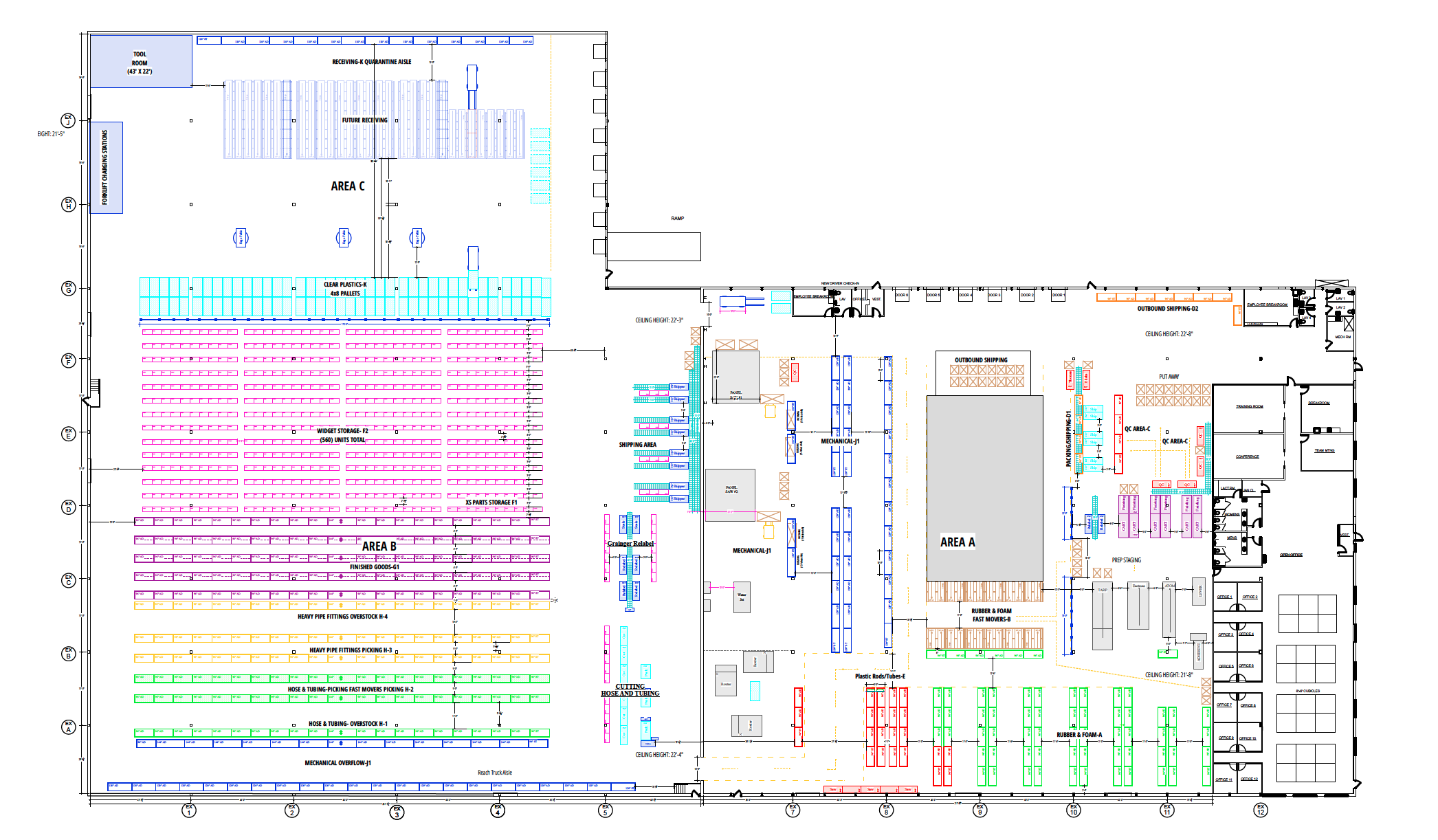
- Add a small icon, dot, or label on the map (if the map already includes these then you can add a transparent shape for the link to work without messing up the image.
- Link that icon to the asset’s work request link
- Repeat this process for any assets you want to be selectable.
Best practice for click targets:
- Make buttons large enough to tap on mobile
- Use consistent colors (ex: blue = production, green = utilities, orange = packaging)
- Use short names (“Pump 1”, “Mixer 3”) to avoid clutter
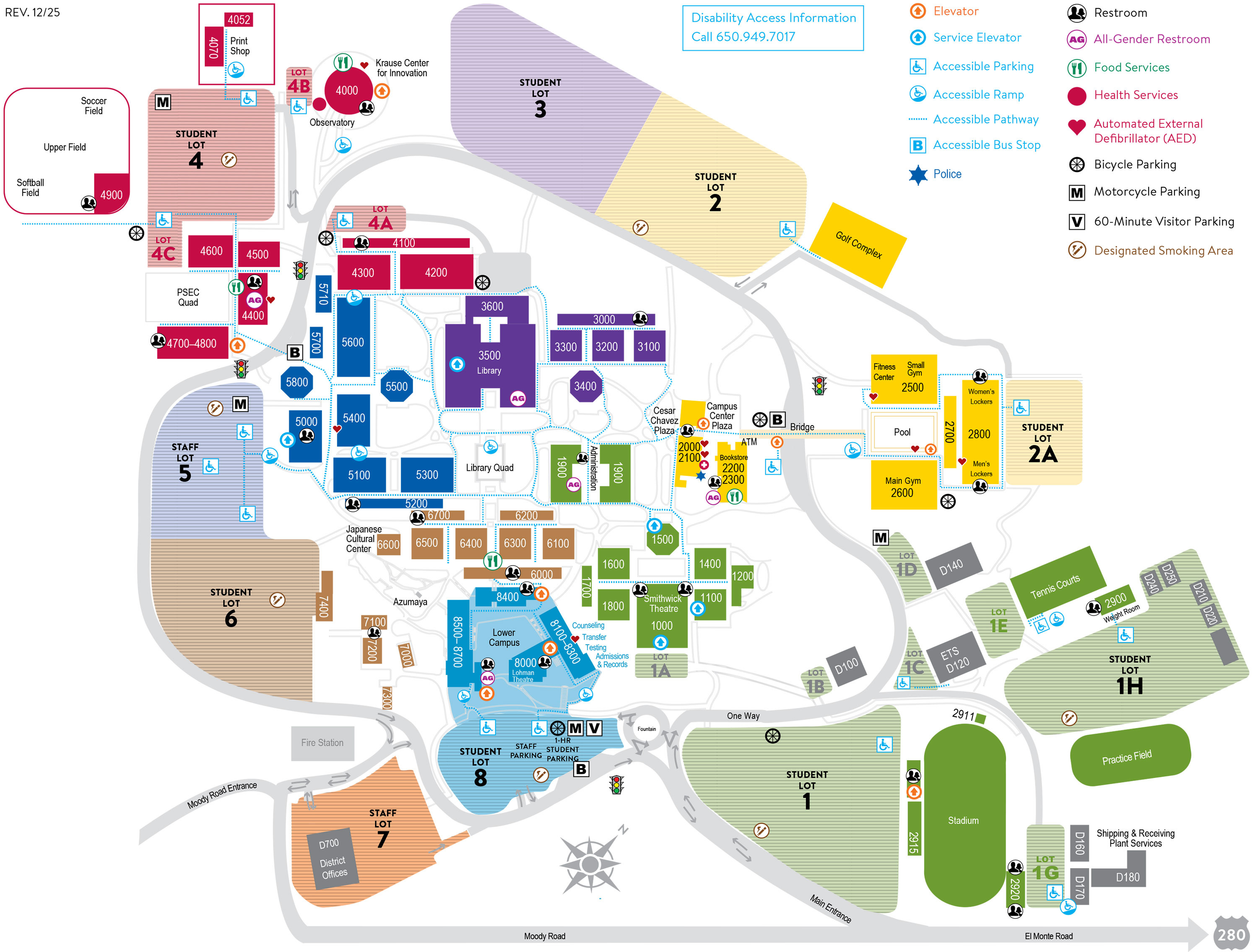
- Add drill downs for specific floors in a building so they can chose specific rooms.
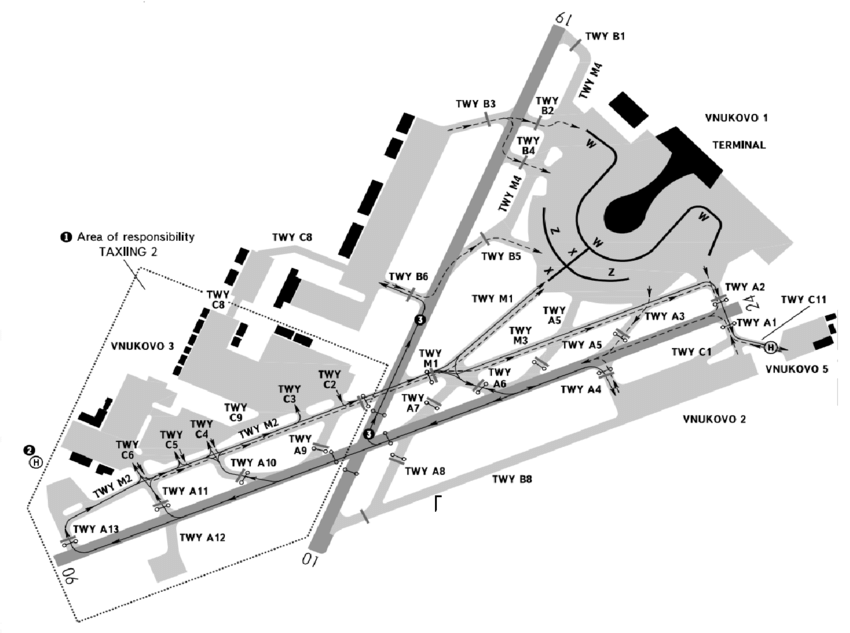
- Split up large assets into smaller sections. (Example- airport runway. Divide it into smaller sections so users can select a specific portion of the runway. You could label each tenth of a mile as Runway A-1, A-2, A-3, etc.)
Step 4: Choose Where Your Clickable Map Will Live
You need a place requesters can access easily.
Internal Company Portal
- SharePoint
- Confluence
- Notion
- Google Site
- Company intranet
A Shared “Request Work Here” Page
Some teams create a dedicated page called:
“Submit a Maintenance Request”
…and embed the map there.
A QR Code on the Wall
Generate a QR code for the link that opens the map page, then requesters click the asset from there. Super handy for areas that often are reported on.
Step 5: Celebrate!
Once you have it hosted you can share the link and you are good to go!
Now go to the store and buy your favorite dessert. Not the crappy off brand version, the good stuff. Live if up, you deserve it!
Common Questions
“Do requesters need a Limble login?”
Nope, anyone with the link can submit. If you want to limit access to the map you will need to configure where the link is hosted and who has access to the site with the link.
“What if an asset moves?”
If equipment moves often, you can:
- update the map quarterly
- use a simpler “zone map” instead of pinpoint accuracy
- link to areas rather than individual machines for highly mobile equipment
“Can we do this with QR codes instead?”
Yes—and many teams use both:
- QR code on the machine → asset request link
- Facility map → quick access when QR isn’t nearby.
I would love to see some examples of these in action. If able, add a link to the maps you've built so our community can see what this looks like in action.